ChatGPT now lets businesses claim and verify their official profiles, and the best part… the process only takes a few minutes. On November 10, 2026, OpenAI launched “Businesses in ChatGPT” in beta. Through a new dashboard called the Business Hub, verified businesses can update core details, connect product feeds with real-time pricing and availability, and track how often ChatGPT mentions their brand.
Why bother claiming your business if ChatGPT already knows you exist?
The short answer: accuracy and control. ChatGPT is already describing your business whether you’ve claimed it or not. With roughly 1.2 billion people using ChatGPT every week, the engine pulls together answers from whatever it can find across the web: your site, old directory listings, reviews, and outdated third-party mentions. (And when was the last time every third-party site had your exact details right?) Claiming your profile gives you a direct seat at the table so you can control the baseline facts the AI uses.
We claimed Hive Digital’s profile on launch day. Below is the exact step-by-step walkthrough, screenshots from our own setup, and a few snags we ran into that are worth knowing before you start.
What claiming does (and doesn’t do)
Claiming gives you control over your inputs, not over ChatGPT’s answers. OpenAI is explicit that ChatGPT keeps making independent recommendations and comparisons, and that claiming doesn’t guarantee higher placement or sales.
| Claiming does | Claiming doesn’t |
|---|---|
| Lets you update your website, description, category, logo, cover photo, and delivery and return policies | Move you up in ChatGPT’s recommendations |
| Lets retailers add a product feed with pricing and availability | Stop ChatGPT from using other sources about you (reviews, directories, articles) |
| Adds a blue check to your profile once verified | Show you individual customer conversations; insights are aggregated |
| Gives you insights: mentions, website clicks and discovery topics | Require a Business Agent; you can show up in answers without one |
| Opens the door to a Business Agent, for eligible U.S. ecommerce and online service businesses | Cost anything at launch; ads remain a separate, paid product |
The honest pitch: claiming makes it more likely that what ChatGPT says about you is accurate and current. That’s worth doing on its own, especially if you’ve ever seen an AI assistant get your hours, services or pricing wrong.
Before you start
You need four things in hand, and the one people miss is access to the business’s DNS or phone line.
- The right to claim. You must own the business or be authorized to represent it. Agencies: see the note on access below before you claim anything for a client.
- A ChatGPT account the business controls. Sign in with an account tied to a company email, not a personal one. The account that claims the business becomes its admin, and that’s the account that can add teammates later.
- A way to prove the connection. ChatGPT offers only the methods that apply to your listing: a code to the business phone, a code to a business email, a DNS TXT record on your website’s domain, or a Shopify login.
- Identity documents for the second step. After OpenAI approves the claim, the person managing the profile completes an identity check with Persona, OpenAI’s verification partner. Expect to provide a government-issued ID, business registration details and proof that you can represent the business. The name, address and registration or tax number need to match official records.
Eligibility, in short: claiming is open to eligible businesses with a website wherever ChatGPT is available, but OpenAI says eligibility depends on industry, location and its own integrity checks, and some categories are on hold. OpenAI also says eligibility rules may change over time. Local stores and restaurants can currently claim only an existing U.S. listing. See the Businesses in ChatGPT policy for the details.
A quick consistency check pays off. Pull up your Google Business Profile and website footer. If your business name, address, phone or website differ from what ChatGPT shows, fix the mismatch at the source first; it’s also what Persona checks against.
How to claim and verify your business in ChatGPT
The whole process has two approvals: OpenAI approves your claim, then Persona verifies your identity. Here’s each step as it appears on screen.
Step 1: Open Business Hub
Sign in to ChatGPT with your company account. Open Business Hub from the sidebar, or go straight to chatgpt.com/business-hub. You’ll land on a page headed “Reach new customers and grow your business with ChatGPT,” with a search bar in the middle.
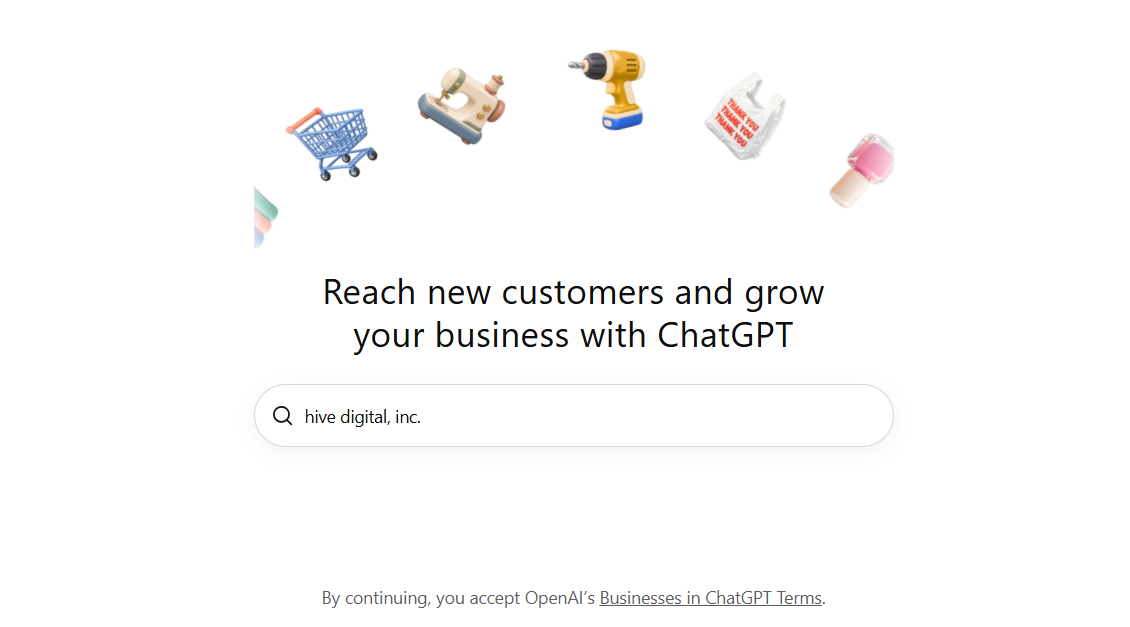
Note the line at the bottom: continuing means you accept OpenAI’s Businesses in ChatGPT Terms. Read them if you’re claiming on behalf of an organization with a legal review process.
Step 2: Search for your business and pick the right listing
Type your business name. ChatGPT shows matching listings with their addresses, plus an option to create a new one.
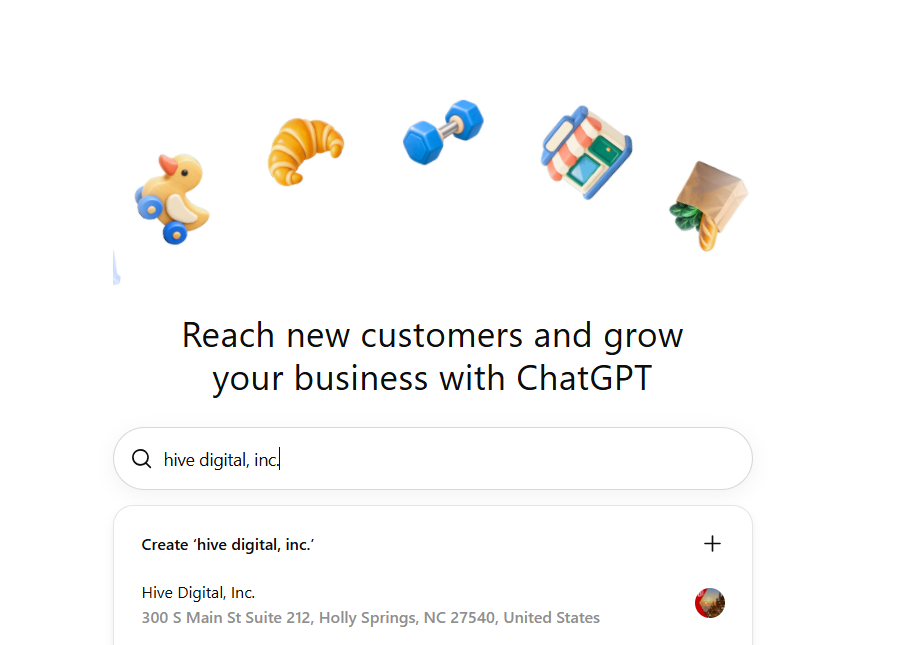
If your business already appears, select the existing listing, even if some details are wrong. You can fix them after verification, and OpenAI’s Businesses in ChatGPT policy doesn’t allow duplicate profiles. Use Create only if no listing exists and you’re an eligible online business. Be careful here: a newly created profile publishes automatically once OpenAI approves it, and launch coverage of the help center says OpenAI Support can’t delete a published profile.
If the listing shows Contact support instead, it’s locked and you’ll need to request access from OpenAI. If someone else has already claimed it, use the ••• menu on the profile and choose Dispute ownership.
Step 3: Choose how to verify your claim
ChatGPT asks you to prove your connection to the business. On the right, you’ll see a preview of the profile ChatGPT already has: name, rating, category, hours, address and phone. Check it now; it tells you what ChatGPT currently believes about you.
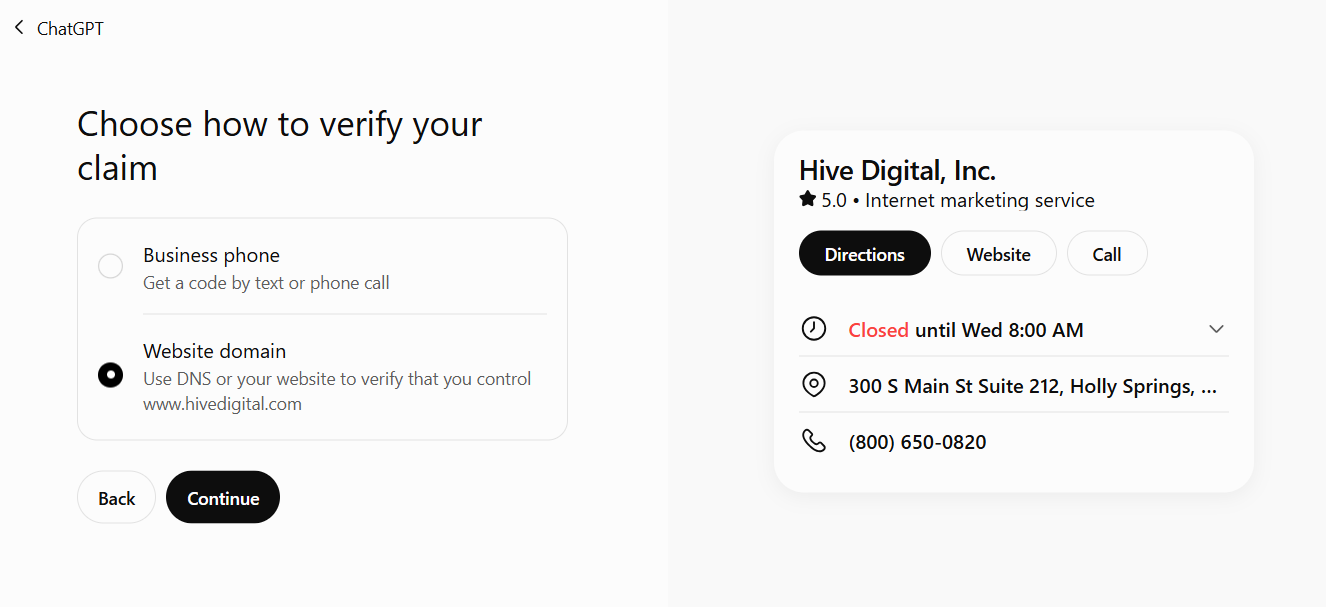
You only see the methods that apply to your listing. Ours offered two:
| Method | What happens | Best for |
|---|---|---|
| Business phone | A code goes to the phone number on the listing, by text or automated call | Whoever answers the main line |
| Website domain | You add a TXT record to your domain’s DNS | Whoever manages DNS (often IT or a web host) |
| Business email | A code goes to the email address tied to the business | Businesses with a monitored shared inbox |
| Shopify | You log in to your Shopify store and approve the connection | Shopify merchants |
Step 4a: Verify by business phone
Choose Business phone, then pick Text message or Phone call. ChatGPT shows only the last four digits of the number it will use, so confirm it’s a line you can answer right now. Select Get code and enter the code you receive.
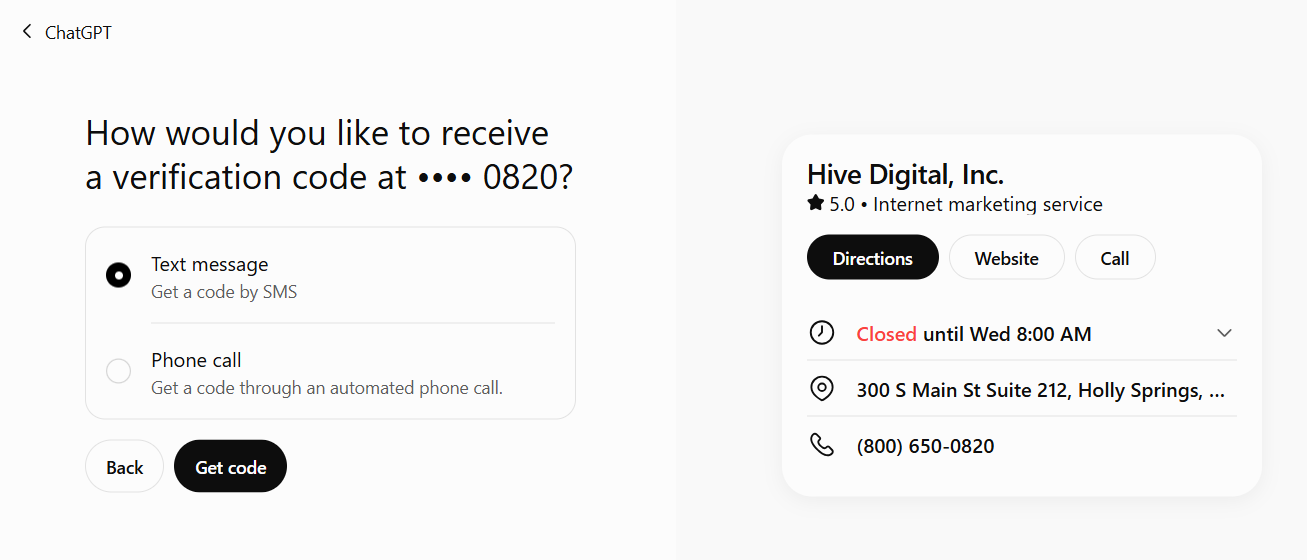
Tip: If your listed number is a toll-free or main line that can’t receive texts, choose Phone call. Make sure someone is ready to answer, or that the call won’t land in a phone tree.
Step 4b: Verify by website domain (DNS)
Choose Website domain. ChatGPT shows a TXT record to add to your DNS settings: a type, a name (host) and a value. For our site the host was openai-business-claim.www.hivedigital.com.
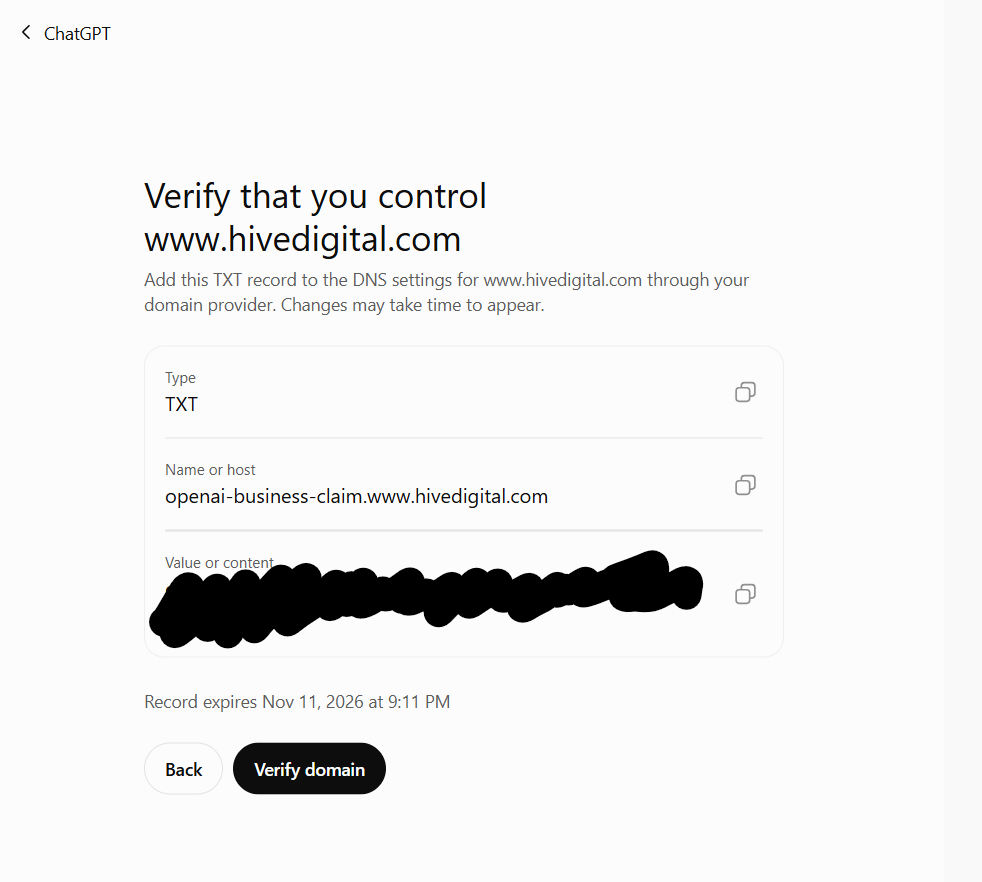
- Copy the Name or host and Value or content using the copy buttons. Don’t retype them.
- Sign in to your DNS provider and add a new TXT record.
- Check how your provider handles the host field. Many add your root domain automatically, so you’d enter only
openai-business-claim.www. Pasting the full name into one of those panels creates a record that won’t match. - Save the record, wait a few minutes, then return to ChatGPT and select Verify domain.
Watch the expiry. The screen shows when the record expires. Ours was set to expire the next day. If you miss the window, start the domain step again for a fresh value.
Notice the host includes www. The record is tied to the website address on your listing, so if your listing points to the wrong domain or a subdomain you don’t control, fix that first or use another method.
Step 5: Wait for OpenAI to review the claim
OpenAI reviews the claim and sends the decision by email. Once approved, the business appears in your Business Hub. You can see it, but you can’t publish edits, view insights or add a feed yet.
Step 6: Complete identity verification with Persona
This is the step that finishes the job. In your business overview, select Complete verification with Persona and submit what it asks for: typically a government-issued ID, business registration details and proof that you’re authorized to represent the business.
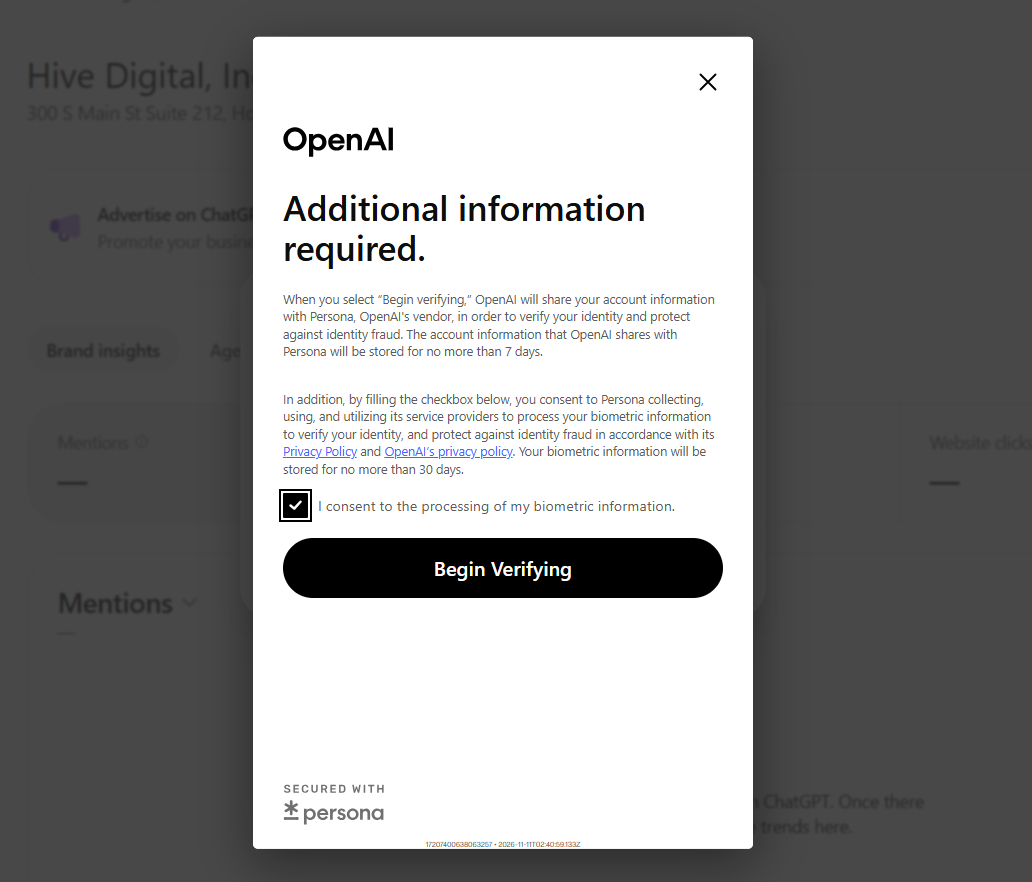
Once Persona approves you, the blue check appears on your profile and the rest of Business Hub opens up: editing, product feeds, insights and, if you’re eligible, Business Agents. You can start Persona later if you need to gather documents, but nothing you change goes live until it’s done.
After verification: what to do first
Start with accuracy, then add teammates, then look at the data. Every edit is reviewed by OpenAI before it goes live, so batch your changes rather than trickling them in.
- Fix the profile. Update your website, description, category, logo, cover photo, and delivery and return policies. Write the description the way you’d answer “what do you do and who for?” in two sentences. Plain facts beat slogans. Upload only logos and photos you have the rights to, and leave out guarantees or review claims you can’t support; the profile policy rules out both.
- Add your team and agency. The admin who claimed the business can grant access to teammates or an agency. Each person signs in with their own ChatGPT account; don’t share logins.
- Connect a product feed (retailers). Shopify merchants can connect their store. Everyone else uploads a feed file that follows OpenAI’s product feed specification, with price and availability for each item.
- Check Insights. Business Hub reports mentions, website clicks and discovery topics (common themes in conversations where your site is cited) over the past 28 days. Numbers only appear once activity passes OpenAI’s privacy thresholds, so a blank metric isn’t the same as zero.
- Decide on a Business Agent later, if at all. Agents are open to eligible U.S. ecommerce and online service businesses, and verification alone doesn’t make you eligible. Review the Business Agents policy first.
Two limits worth knowing: each brand is claimed and managed separately, and claiming a main brand doesn’t claim its locations. There’s no central management for parent companies yet.
Common snags and how to fix them
| Problem | Likely cause | Fix |
|---|---|---|
| Verify domain fails | DNS hasn’t propagated yet, or the host was entered with the domain doubled | Wait 15 to 30 minutes and retry. Check the record with a public lookup such as Google Admin Toolbox Dig (TXT, full host name). |
| The TXT value no longer works | The record expired | Restart the domain step to get a new value, and replace the old record |
| No verification code arrives | The listed number can’t take texts, or the call hits a phone menu | Switch to Phone call, or use another method |
| The phone number shown is wrong | ChatGPT’s listing has outdated data | Verify by domain instead, then correct the number after Persona approval |
| Two listings for your business | A duplicate already exists in ChatGPT’s data | Claim the one with the correct address; ask OpenAI support about the other |
| Listing says Contact support | The profile is locked | Request access through OpenAI support |
| Someone else already claimed it | A former employee, agency or bad actor | Use ••• › Dispute ownership on the profile, then complete Persona |
| Persona rejects the documents | Name, address or registration number doesn’t match official records | Make the documents and your registration records match before resubmitting |
Frequently asked questions
Does claiming my business help me rank higher in ChatGPT?
No, not directly. OpenAI says claiming doesn’t guarantee higher placement or sales, and ChatGPT keeps making independent recommendations. Accurate, complete information can help ChatGPT match you to more relevant questions, but nobody controls what an AI assistant recommends.
Will my business show up in ChatGPT if I don’t claim it or build an agent?
Yes. ChatGPT may show information about your business whenever it’s relevant, with or without a claim or a Business Agent. Claiming just means the facts it draws on include ones you supplied.
Is it free?
Claiming, editing your profile and viewing insights were free at launch. Sponsored Business Agents and ChatGPT Ads are separate, paid products.
Do I need ChatGPT Enterprise or an Ads account?
No. Any eligible owner or authorized representative can claim through Business Hub. Existing OpenAI Enterprise customers and advertisers can also work through their OpenAI representative.
Can my agency claim the business for me?
The cleaner route is for the business to claim it with its own account, then grant the agency access from Business Hub. That keeps ownership with the business and identity documents with Persona, not in an agency inbox.
Can I see what people ask ChatGPT about my business?
No. OpenAI doesn’t share individual conversations or Business Agent chats. You get aggregated mentions, website clicks and discovery topics instead.
What’s the difference between claiming and building a Business Agent?
Claiming manages your profile: the facts ChatGPT can show. A Business Agent is an optional, clearly labeled chat that answers customer questions using information you provide. Agents are currently limited to eligible U.S. ecommerce and online service businesses.
We have several brands or locations. Do we claim them all?
Yes, separately. Each brand needs its own claim, and claiming the main brand doesn’t cover its locations.
Where this fits in your AI visibility plan
If you’ve spent any time in local SEO, you know the drill: the first thing you ever did was claim your Google Business Profile and audit your NAP (Name, Address, Phone) to ensure search engines had your basic facts straight.
Claiming your ChatGPT Business Profile is the modern, generative search equivalent. It is essential, quick, and nowhere near the whole job.
Teachable Moment: From NAP to Entity Grounding: In classic SEO, consistent NAP data prevented search engines from confusing your location. In GEO (Generative Engine Optimization), your profile functions as an anchor entity. You aren’t just verifying an address; you are feeding verified baseline facts directly into the AI’s knowledge graph to prevent hallucinations and establish your brand as a “safe-to-cite” source.
Your Business Hub profile is only one input. ChatGPT still synthesizes its answers by crawling your website, retrieving third-party reviews and citations, and relying on its underlying training data.
That is why we evaluate overall AI visibility through three distinct lenses:
-
Reputation: What does the model already say about your brand based on its existing training data?
-
Reach: When the engine runs live web searches to answer a user prompt, which sources does it cite, and is your site part of that evidence pool?
-
Readiness: Can AI search crawlers and agents easily access, parse, and extract structured information from your website?
Business Hub gives you a direct, first-party look at that second question (Reach), specifically within ChatGPT. Keep in mind its current tracking nuance: it logs a “mention” when ChatGPT directly links to your website. If a user receives a recommendation for your product but the AI links out to an authorized retailer instead, that activity won’t reflect in your dashboard.
To get the complete picture, pair your Business Hub data with Google Analytics. ChatGPT appends utm_source=chatgpt.com to outbound referral links, allowing you to build a dedicated segment in GA4 today to track actual click-through traffic. And keep in mind: while ChatGPT is a massive player, engines like Google AI Overviews, Perplexity, Copilot, and Gemini each have their own retrieval logic and citation habits. Claiming your profile is your baseline stake in the ground, not the finish line.
Need a hand? If you’d like help claiming your profile, getting your facts consistent across the web, or measuring how AI assistants describe your brand, talk to our team. We’ve been doing search since 2002, and we’ll tell you plainly what’s worth your time.