Streamlining Marketing Analytics: A Complete Guide to Automating Google Ads Data Pipeline with Azure Data Factory and ADLS
In today’s data-driven marketing landscape, the ability to quickly access, process, and analyze advertising performance data can make the difference between a successful campaign and a missed opportunity. Marketing teams often struggle with fragmented data sources, manual reporting processes, and delayed insights that hinder their ability to make real-time optimizations.
The solution lies in building an automated pipeline that seamlessly extracts Google Ads data and stores it in a centralized, scalable data lake for advanced analytics and reporting.
In this comprehensive guide, we’ll walk through creating a production-ready pipeline that automatically extracts data from Google Ads, stores it in Azure Data Lake Storage (ADLS), and optionally loads it into Snowflake for advanced analytics—all orchestrated through Azure Data Factory (ADF).
Understanding the Tech Stack
Google Ads API and GAQL
The Google Ads API provides programmatic access to Google Ads data through a powerful query language called Google Ads Query Language (GAQL). GAQL allows you to construct sophisticated queries that can extract exactly the data you need, from campaign performance metrics to keyword-level insights.
Unlike traditional REST APIs that require multiple endpoints for different data types, GAQL enables you to write SQL-like queries that specify exactly which fields, metrics, and segments you want to retrieve. For example:
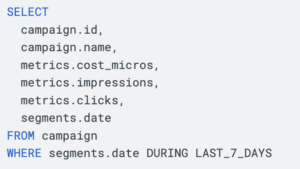
This approach not only reduces the number of API calls but also gives you precise control over your data extraction.
Azure Data Factory as the Orchestration Layer
Azure Data Factory serves as the central orchestration engine for our pipeline. Its native Google Ads connector eliminates the need for custom code, while its visual interface makes pipeline development and maintenance accessible to both technical and non-technical team members.
ADF’s strength lies in its ability to handle complex data workflows, provide robust error handling, and scale automatically based on demand. The platform also offers comprehensive monitoring and alerting capabilities, ensuring your pipeline runs reliably in production.
Azure Data Lake Storage for Scalable Data Storage
ADLS provides the perfect staging ground for your Google Ads data. Its hierarchical namespace allows you to organize data logically by date, campaign, or any other dimension that makes sense for your business. The storage is both cost-effective and highly scalable, capable of handling anything from small daily extracts to massive historical data loads.
Prerequisites and Planning
Google Ads API Access Requirements
Before diving into the technical implementation, you’ll need to secure appropriate access to the Google Ads API. Google offers different access levels based on your usage requirements:
- Test Access: Limited to 15,000 operations per day, suitable for development and testing
- Basic Access: Up to 15,000 operations per day for production use
- Standard Access: Higher limits (vary by account) for enterprise-level usage
For most production scenarios, you’ll want to apply for Basic or Standard access. The application process requires submitting a design document explaining your intended usage, but this is typically approved within a few business days.
You’ll also need to gather several authentication credentials:
- Developer Token from Google Ads API Center
- OAuth2 credentials (Client ID, Client Secret, Refresh Token)
- Customer ID for the Google Ads account you want to access
Azure Resource Setup
On the Azure side, ensure you have:
- An Azure Data Factory instance
- An Azure Data Lake Storage Gen2 account
- Appropriate permissions to create linked services and pipelines
- (Optional) A Snowflake account if you plan to implement the complete analytics pipeline
Step-by-Step Implementation
Setting Up Google Ads Linked Service in ADF
The first step in building your pipeline is establishing a connection between ADF and Google Ads. Navigate to the ‘Manage’ section in Azure Data Factory and create a new linked service.
Search for ‘Google Ads’ (previously called ‘Google AdWords’) and select it. You’ll need to provide your authentication details:
- Developer Token: Your unique token from Google Ads API Center
- Client Customer ID: The Google Ads account ID you want to access
- OAuth credentials: Client ID, Client Secret, and Refresh Token obtained during the OAuth setup process
- API Version: Use the latest supported version (currently v20)
The beauty of using ADF’s native connector is that it handles all the authentication complexity behind the scenes. Once you test and save the linked service, ADF will manage token refresh and other authentication tasks automatically.
Creating Datasets with GAQL Queries
Next, create a Google Ads dataset that will serve as the source for your pipeline. In the ‘Author’ section, add a new dataset and select ‘Google Ads’. Choose the linked service you just created and enable the ‘Use Query’ option.
This is where GAQL shines. You can craft precise queries that extract exactly the data you need. For example, if you want to track campaign performance over the last 30 days:
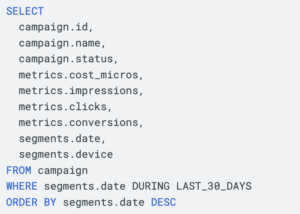
This query provides a comprehensive view of campaign performance, broken down by date and device, giving you the granular data needed for detailed analysis.
Configuring ADLS Storage
Creating the ADLS dataset requires careful consideration of your data organization strategy. In the ‘Author’ section, add a new dataset and select ‘Azure Data Lake Storage Gen2’. Choose either ‘DelimitedText’ (CSV) or ‘Parquet’ format based on your downstream processing requirements.
Parquet is generally recommended for analytics workloads due to its columnar format and built-in compression, but CSV might be preferable if you need human-readable files or have systems that specifically require CSV input.
Configure the file path using dynamic content to create a logical folder structure. For example:
/google-ads-data/{formatDateTime(utcNow(),’yyyy’)}/{formatDateTime(utcNow(),’MM’)}/{formatDateTime(utcNow(),’dd’)}/
This creates a date-partitioned structure that makes it easy to locate specific data and enables efficient querying when you move to analytics platforms.
For the filename, use dynamic expressions to ensure uniqueness:
campaign_data_{formatDateTime(utcNow(),’yyyyMMddHHmm’)}.parquet
Building the Complete Pipeline
Now comes the exciting part—connecting everything together in a Copy Activity. Create a new pipeline and add a Copy Activity. Set your Google Ads dataset as the source and your ADLS dataset as the sink.
Before running the pipeline, ensure your ADLS container and folder structure is properly set up. Navigate to your Storage Account in the Azure portal, create or select your container, and create the folder hierarchy where your CSV or Parquet files will be stored. This organizational structure is crucial for data governance and easy retrieval.
In the source settings, you can add additional query parameters or modify the GAQL query if needed. The sink settings allow you to configure how data is written to ADLS—whether to replace existing files, append to them, or create new files based on your business requirements.
Enable ‘Auto Mapping’ to automatically map columns from your GAQL query to the output schema, or manually configure mappings if you need to transform column names or data types during the copy process.
Testing Your Pipeline
Before scheduling your pipeline for production, thorough testing is essential. Use ADF’s debug functionality by clicking the ‘Debug’ button in the pipeline editor. This allows you to test the entire pipeline without creating a formal trigger, giving you immediate feedback on any configuration issues.
During the debug run, monitor the progress in real-time and check for any errors or warnings. Once the pipeline completes successfully, navigate to your ADLS container and verify that the data file has been created in the expected location with the correct structure and content.
This verification step is crucial—open the generated file to ensure the data extraction worked correctly and that all expected columns and rows are present. This validation prevents discovering data quality issues after the pipeline is in production.
Advanced Features and Best Practices
Data Transformation Options
While the Copy Activity handles basic data extraction perfectly, you might need to transform your data before storing it. ADF offers several options:
Data Flows provide a visual, code-free way to implement transformations. You can add derived columns, filter data, perform joins, and implement complex business logic without writing code.
Databricks Integration offers more advanced transformation capabilities for complex data processing scenarios. This is particularly useful if you need to implement machine learning models or advanced analytics directly in your pipeline.
Scheduling and Monitoring
Production pipelines need reliable scheduling and comprehensive monitoring. ADF’s trigger system allows you to schedule pipeline runs based on time (hourly, daily, weekly) or events (file arrival, external system completion).
For Google Ads data, daily extraction is typically sufficient, but you might want more frequent updates during critical campaign periods. Consider creating multiple triggers for different scenarios—perhaps hourly updates during business hours and daily updates during off-hours.
Implement comprehensive logging and alerting to catch issues before they impact your business. ADF provides built-in monitoring capabilities, but consider integrating with Azure Monitor or third-party tools for enterprise-grade monitoring.
Error Handling and Retry Logic
Robust error handling is crucial for production pipelines. Implement retry logic for transient failures, but also consider scenarios where retries might not be appropriate (such as authentication failures or quota exceeded errors).
Use ADF’s conditional execution features to implement fallback strategies. For example, if the primary Google Ads query fails, you might want to execute a simpler query or send notifications to the operations team.
Real-World Benefits and Use Cases
Automated Reporting Scenarios
Once your pipeline is operational, you can build sophisticated reporting scenarios. Marketing teams can access fresh Google Ads data every morning, enabling them to:
- Identify underperforming campaigns and make quick adjustments
- Spot trending keywords and capitalize on emerging opportunities
- Create automated alerts for significant performance changes
- Build comprehensive dashboards that combine Google Ads data with other marketing channels
Data Freshness and Reliability
Automated pipelines eliminate the manual effort and human error associated with traditional reporting processes. Your data is always fresh, consistently formatted, and reliably available when your team needs it.
The centralized storage in ADLS also enables advanced analytics scenarios that would be difficult with siloed data sources. You can easily combine Google Ads performance data with customer data, sales data, or external market data to gain deeper insights.
Scaling Considerations
As your Google Ads management grows more sophisticated, your data pipeline can scale accordingly. You can easily add new GAQL queries to extract additional data points, implement more complex transformations, or integrate additional data sources.
The serverless nature of ADF means you only pay for what you use, making it cost-effective to scale up during busy periods and scale down during quiet times.
Troubleshooting Common Issues
API Version Compatibility
Google regularly updates the Ads API and deprecates older versions. Always use the latest supported version in ADF and monitor Google’s sunset dates for API versions. The native connector typically supports the most recent versions, but it’s worth checking compatibility if you encounter unexpected errors.
Authentication Problems
Authentication issues are among the most common problems in API integrations. Ensure your refresh tokens haven’t expired and that your Google Ads account has the necessary permissions. If you’re using a Manager Account (MCC), make sure you’re providing the correct Login Customer ID.
Performance Optimization
Large data extracts can sometimes timeout or perform poorly. Consider breaking large queries into smaller chunks based on date ranges or campaign segments. You can also implement parallel processing by creating multiple pipelines that extract different data subsets simultaneously.
Conclusion and Next Steps
Building an automated Google Ads data pipeline with Azure Data Factory and ADLS transforms how marketing teams access and analyze their advertising data. The combination of Google’s powerful GAQL query language and Azure’s robust data platform creates a foundation for sophisticated marketing analytics that can adapt and scale with your business needs.
The pipeline we’ve built provides immediate value through automated data extraction and storage, but it also opens doors to advanced analytics scenarios. Consider extending the pipeline with machine learning models for campaign optimization, real-time alerting systems for performance anomalies, or integration with business intelligence tools for comprehensive marketing dashboards.
As you implement this solution, remember that the most successful data pipelines are those that evolve with business needs. Start with basic campaign performance data, validate the pipeline’s reliability, and gradually expand to include more data sources and sophisticated transformations.
This automated pipeline delivers immediate value by providing your marketing teams with better data accessibility, eliminating manual processes, and dramatically reducing the time from data to actionable insights. In an increasingly competitive digital advertising landscape, having reliable access to fresh, comprehensive performance data isn’t just a nice-to-have—it’s a competitive necessity.
Ready to transform your marketing analytics with automated Google Ads data pipelines? Contact the Hive Digital Team today to build a scalable, production-ready solution that streamlines your data workflows and accelerates your marketing insights.